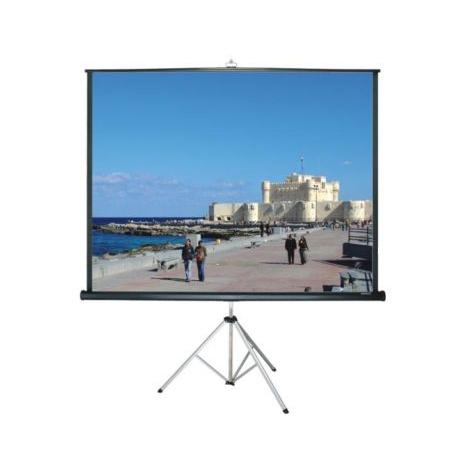
Separate the screen from the projector
The most important booking detail is also the easiest to miss: the catalogue's portable 100-inch projector screen is labelled screen only. A screen provides the viewing surface; a projector produces the image. A laptop or playback device supplies the content, and audio may require another connection or system. Do not treat a screen reservation as a complete audiovisual package.
The current catalogue does not identify a projector model to reserve alongside this screen. If you need one, ask the team about current options or arrange a suitable projector separately. Confirm its model, lens or throw requirements, inputs and accessories before finalizing the room layout. Do not assume the screen price includes a projector, cables, adapters, speakers or an operator.
Make a short equipment ownership list: screen from the rental company, projector from the confirmed source, laptop from the presenter and audio from the agreed provider. Add cables, adapters and supports to that list. Giving every component an owner prevents the familiar event-day problem in which each supplier believed another person was bringing the connecting piece. The setup works only when the entire chain is compatible.
Choose the content before choosing the layout
Define what guests need to see: photographs, a short video, large presentation slides, detailed charts or a live demonstration. These do not have the same viewing demands. A room that works for a photo slideshow may not let the back row read a dense spreadsheet. Decide whether the audience needs to read small details or simply follow a visual story.
Prepare a representative slide or clip early. Use actual text sizes, colours and graphics rather than a blank test image. If the content is crowded, simplifying it can help more than changing equipment. Split a complicated chart across several slides, use clear contrast and show only the information the audience needs at that moment. Do not assume a projector will make tiny text comfortably readable just because the image is large.
Identify any interactive requirements. A presenter who changes slides from the front needs a workable control method, while a live software demonstration may need a stable network and visible cursor. Confirm these arrangements separately from the screen rental. The equipment plan should follow the presentation's tasks, including audio and questions, rather than beginning with a screen size and hoping every activity will fit.
Confirm what the screen size means
Screen dimensions are often described by the diagonal measurement, but the listed 100-inch label alone does not establish the rental screen's visible width, height, aspect ratio or overall footprint. Ask for those details, including the stand or support arrangement and the height options. Do not assume it is a particular widescreen format or that the frame occupies only the visible image area.
Aspect ratio is the relationship between image width and height. Your presentation and projector settings need to work with the available screen format. A mismatch may create unused areas or require a different image size. It does not mean you should stretch faces, charts or text to fill every inch. Confirm the intended format and test the actual content so the result remains readable and correctly proportioned.
Measure the space for the complete screen, including any legs or supports and the setup clearance required by its instructions. Check the ceiling, lighting and nearby doors. A screen positioned in front of a doorway may seem convenient before the audience arrives but become an obstacle afterward. Ask the venue to review the position and keep exits, signs and essential access visible and available throughout the event.
Check projector distance with the actual model
Projector placement depends on the projector and the image size you want. Throw distance refers to the distance between the projection system and the screen; different models and lenses can require very different positions for the same image width. Epson's manufacturer guidance explains this relationship, but its model-specific tables should not be applied to an unidentified projector from another source.
Obtain the exact projector model and use its manufacturer's instructions or calculator to establish the suitable distance and position. Confirm the relevant image format, zoom range and any placement limitations. Do not guess from a friend's setup or from a generic rule that a projector belongs at the back of the room. A projector placed too close or too far away may not produce the intended image size within its available adjustment range.
Draw the projector position on the floor plan alongside the screen and seating. Include the beam path and the space required for the support, power and cables. Guests and servers should not need to walk repeatedly through the projection path. If the required position conflicts with a main route, revise the plan or obtain a more suitable projector rather than expecting digital adjustment to solve every physical constraint.
Assess room light at the event time
Visit or assess the room under conditions similar to the event. Afternoon sunlight through a window can make a screen difficult to see even when an evening test looked acceptable. Ask which lights can be adjusted and whether window coverings are available. Keep the audience's safety and the venue's requirements in mind; making the picture clearer does not justify obscuring exits or leaving walking routes inadequately lit.
Tell the projector supplier about the expected ambient light, image size and content. Do not select a brightness rating from a generic article and assume it guarantees the result in your room. The projector, screen, lighting and content all affect what viewers perceive. Ask for a suitability assessment and a practical test where possible, especially when important text or video detail must remain visible.
Outdoor projection requires its own review. Daylight, weather, wind and the equipment's environmental limits matter, and a portable screen is not automatically suitable outdoors. Confirm the intended setting with the rental team and projector provider before booking. Do not improvise an outdoor support or weather cover. If the proposed conditions are unsuitable, change the location or schedule rather than relying on an untested setup.
Verify every connection in the picture chain
Identify the exact laptop or playback device, projector input and cable or adapter needed between them. Connector shape alone does not guarantee that an adapter supports the required video output. Ask the device and projector providers to confirm compatibility. Keep the plan specific: the laptop that will be used on the day, not another computer that happened to work during a previous event.
Do not assume the projector supports wireless casting, USB media playback, a particular HDMI feature or audio output unless the actual model confirms it. If wireless presentation is part of the plan, test it with the event's network and device permissions. A wired alternative may be useful when compatible and properly arranged, but it must also be tested rather than kept as an unidentified cable in a bag.
Check the full content workflow. Open the presentation, play embedded video and verify any fonts or media files. Where appropriate, prepare an offline copy so a network problem does not halt the presentation. Use content you have permission to display and avoid exposing personal notifications or unrelated desktop information. A connection test is complete when the intended content appears correctly on the screen, not merely when the projector detects a source.
Plan audio as a separate requirement
A visible video is not enough if the audience cannot hear it. Confirm whether the chosen projector has audio facilities and whether they are suitable for the room. Do not assume a built-in speaker, if present, meets the event's needs. Ask the audio provider to review the soundtrack source, the room and the audience layout before deciding on equipment.
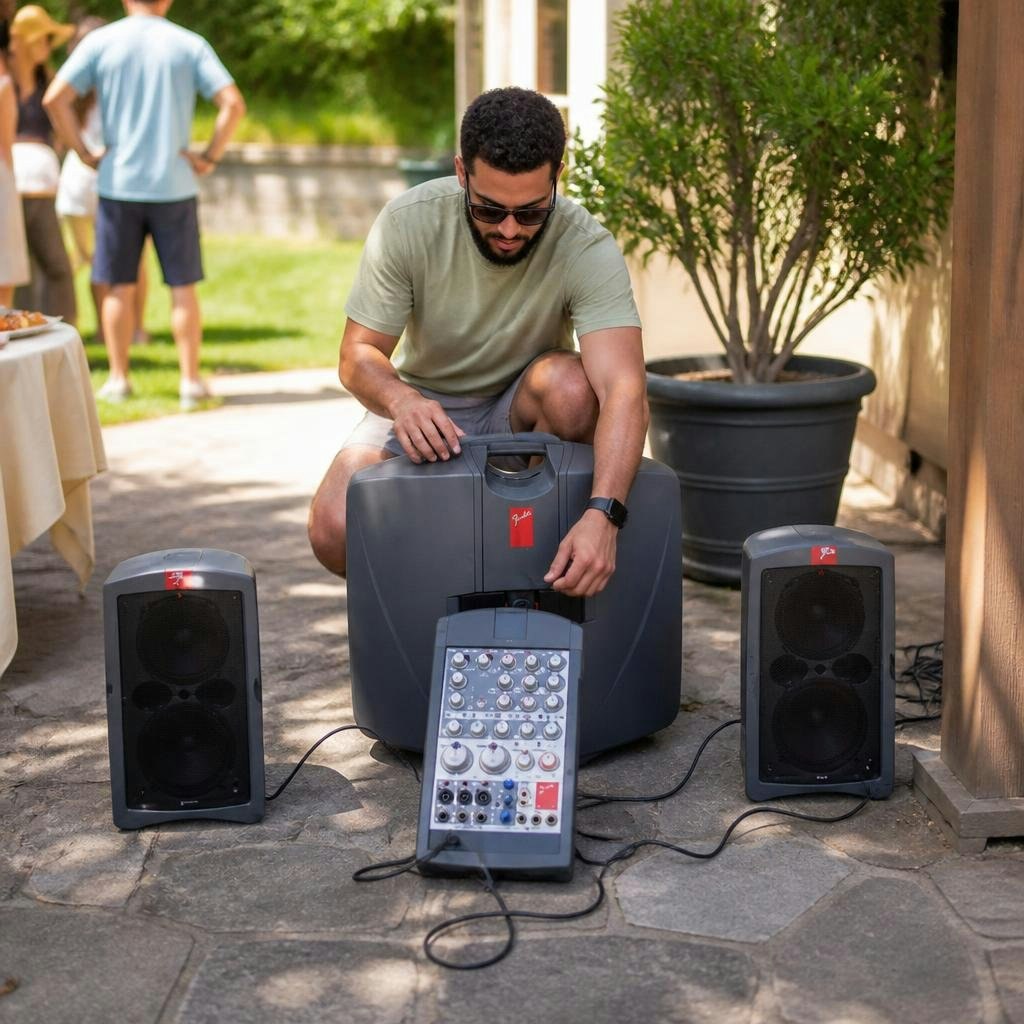
Cody Party lists a Fender PA system with microphone as a separate rental. Its exact model and connections need confirmation, so do not presume it accepts the projector's output or a wireless signal. Work out the intended audio path with the providers: the source device, any approved adapter and the system input. Test that path using the actual video and speaking microphone where both are needed.
Arrange an operator or helper for transitions between speech and playback. Different clips may have different audio levels, and the presenter should not have to leave the front repeatedly to solve them. Include the first and last few seconds of each clip in the rehearsal. Confirm that sound returns to the microphone when the video ends, and keep the equipment and cables away from food service and guest traffic.
Arrange seating and the presentation position
Place the screen where the audience can see it without turning awkwardly or looking past unnecessary obstructions. Test from the back and outer seats with the actual content. Do not use a universal seats-per-screen formula: readability depends on the material, screen dimensions, viewing positions and room. If important details are unclear, simplify the content, revise the seating or reconsider the setup.
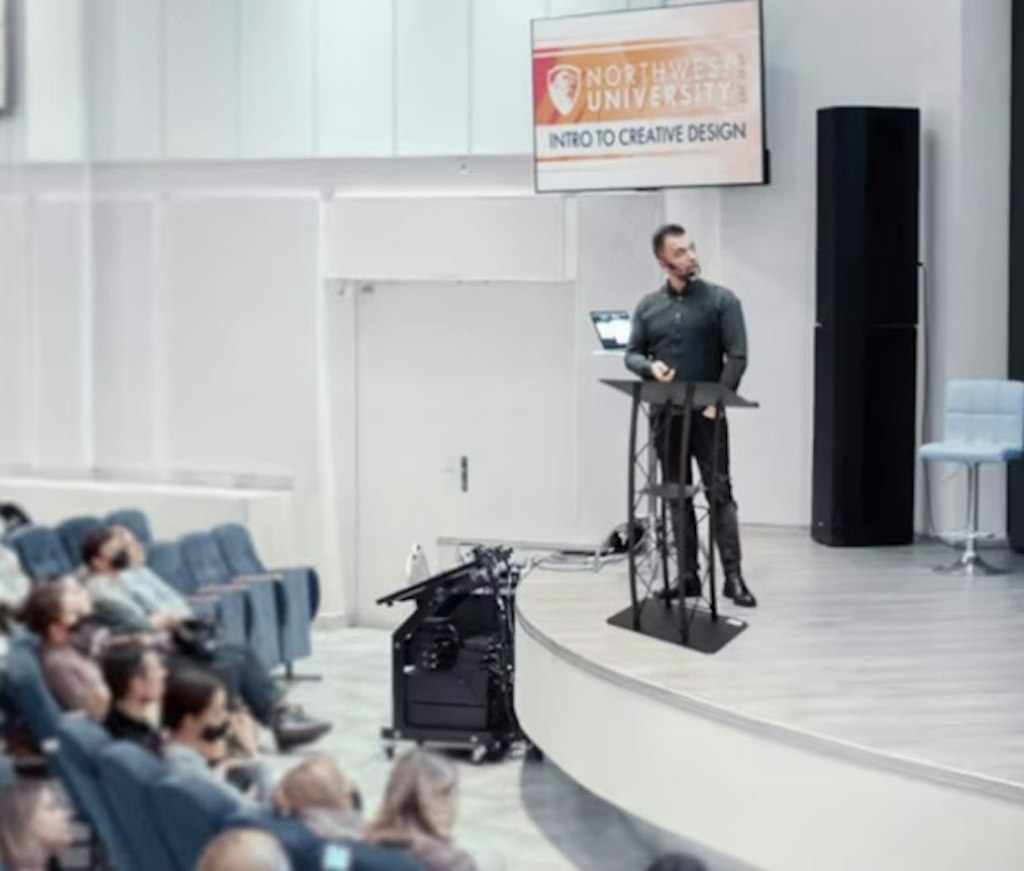
A lectern podium can help define a speaking position, but it should not block the image or force the presenter to stand in the beam. Confirm how notes, microphone and slide controls will be handled. The podium listing does not itself promise integrated audio or video facilities. Rehearse the presenter's movements so they can address the audience without casting shadows across the screen.
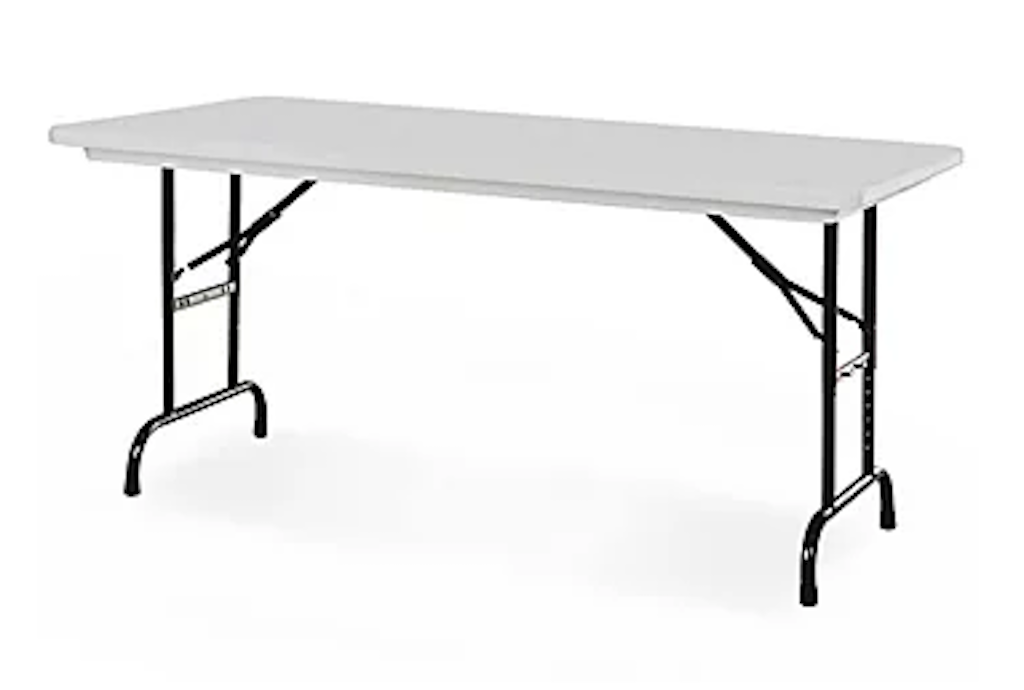
Consider rental chairs as part of a measured seating layout, leaving clear routes and suitable accessible places. If a rental table is proposed for an operator or projector, confirm that it is appropriate for the actual equipment and setup. Follow the projector manufacturer's support and ventilation requirements. A convenient surface is not automatically a suitable mounting position, particularly where guests could bump it.
Run a complete rehearsal and keep a fallback
Set up early enough to test the entire event sequence. Check the screen installation against its supplied instructions, then position and connect the confirmed projector as directed by its manufacturer. Use the actual presentation device and files. Test the first slide, a detailed slide, every video and any change of speaker or source. Have someone view and listen from several audience positions.
Check the image without overcorrecting blindly. Physical placement, focus, aspect ratio and model-specific adjustments should follow the instructions for the projector. Do not assume digital keystone or other correction can compensate for any location. If the picture is distorted, clipped or difficult to read, review the setup systematically with the responsible person. Keep the final settings and cable arrangement stable after the rehearsal.
Prepare a fallback suited to the event's importance. A presenter may have printed notes or a simplified verbal version, while a time-critical programme may need separately arranged backup equipment or technical support. Save files where the designated operator can access them. A fallback is not an admission that the rental will fail; it prevents one missing adapter, network interruption or changed laptop from stopping the entire gathering.
Book clearly and return the complete equipment
Send the rental team your event date, venue, intended screen location, audience layout and the content type. State that you are requesting the listed screen and identify who supplies the projector. Ask for the screen's confirmed visible dimensions, format, support footprint and setup instructions. Highlight outdoor use, tight access or unusual positioning before assuming the item is suitable.
Coordinate the screen request with the projector and audio providers. Confirm cables, adapters, supports, power arrangements and operating responsibility in one shared checklist. Check delivery or pickup timing and allow a meaningful setup and rehearsal window. Treat availability and the final confirmed quote as the basis of the booking rather than an unfinished list of equipment you hope will connect.
After the event, follow each supplier's shutdown, cooling and packing instructions. Protect the screen surface and do not apply cleaning products or force a mechanism that is not operating normally. Keep rental accessories separate from your own cables and report problems promptly. A reliable presentation begins with clear distinctions: screen, projector, source and audio are separate parts, and each must be deliberately selected and tested as part of the complete setup.
Further reading & sources
Check current instructions and requirements for your event and the equipment supplied.